Getting Started
Create your first game, configure Roblox APIs, and connect the setup script so config changes flow live.
Prerequisites
Before you begin, make sure you have the following ready:
- A Roblox account with access to the experience you want to manage.
- The Universe ID for that experience, found in the Roblox Creator Dashboard under Settings → Experience.
- A Roblox Open Cloud API key with permissions for MessagingService, DataStore, Groups, and User Restrictions.
- A Discord server if you want bot commands, slash command registration, or webhook logging.
- Studio access to paste the setup script into
ServerScriptService.
Setup Checklist
- Create a game in the dashboard and open its settings.
- Set Universe ID and paste your Open Cloud API key.
- Enable Open Cloud MessagingService in the Roblox Creator Dashboard under Security → API Services.
- Paste the setup script into
ServerScriptServicefrom the dashboard. Do not place it inReplicatedFirstor a client container unless you know why. - Define your first config variable in the Configs tab. Pick a clear key name like
eventNameordoubleXpEnabled. - Save and confirm the game polls or pushes updates without republishing.
- Send a test remote command from the dashboard to verify the in-game script is receiving events.
Open Cloud Permissions
Your Open Cloud API key needs access to at least these services:
- MessagingService — required for dashboard-to-game remote commands and live event dispatch.
- DataStore — used for config syncing and online player tracking.
- Groups — enables Discord-to-Roblox rank promotion and group checks.
- User Restrictions — required for the Ban command and access control.
You can create an Open Cloud API key from the Roblox Creator Dashboard under Settings → API → Open Cloud. Scope it carefully. A key with write access can modify group ranks and user restrictions, so treat it like a password.
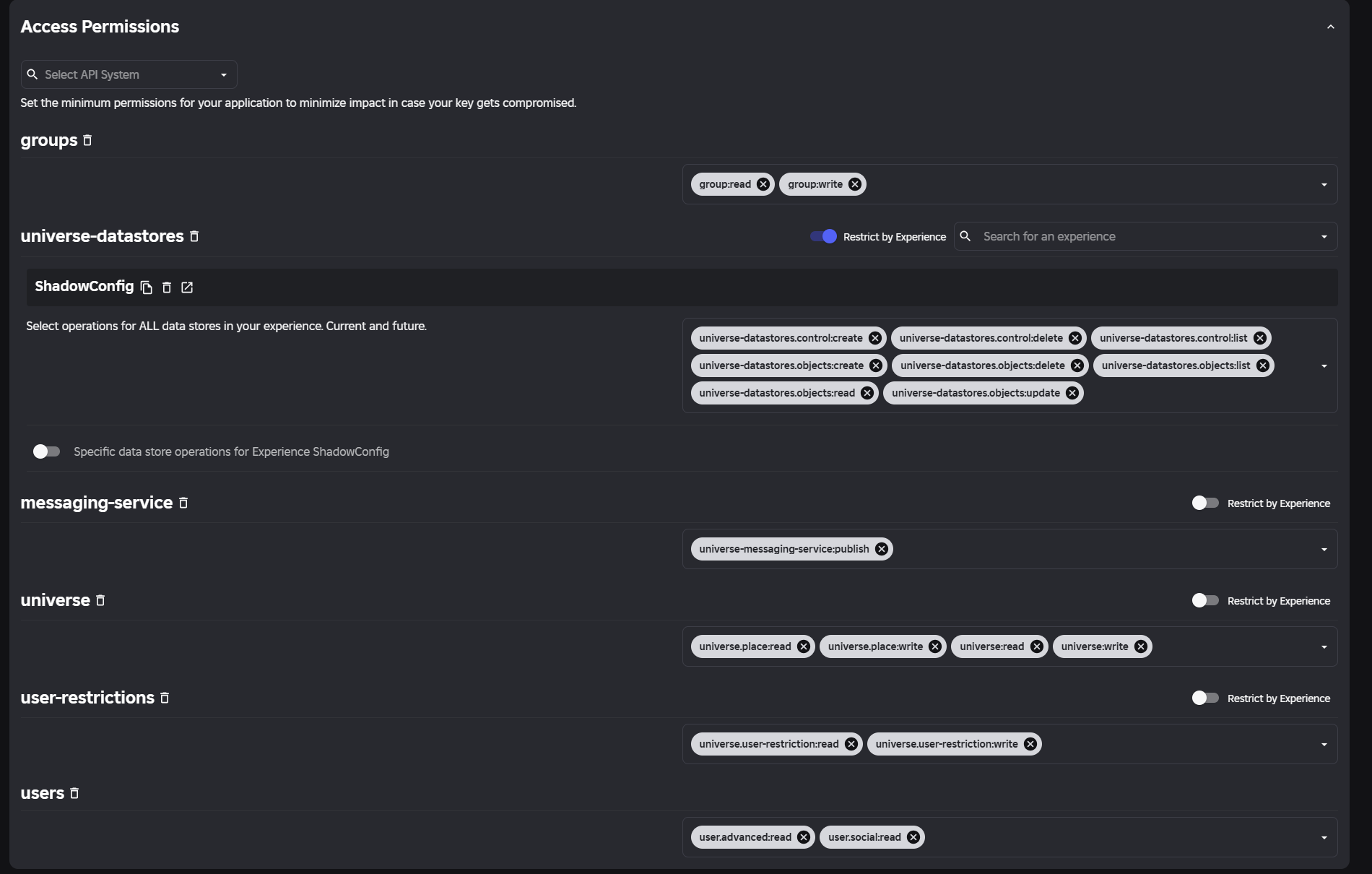
The image above shows the important permission scopes. We recommend turning these on to unlock many ShadowConfig features.
Verify It Works
- After pasting the script, join your game in Studio or through the Roblox client.
- Open the Output window in Studio. You should see logs from the setup script confirming it loaded correctly.
- Go to the dashboard Remote Commands tab and send a test announcement. If players see it, the pipeline is working.
Pitfalls to Avoid
- Don’t paste multiple setup scripts into the same container. One
ServerScriptServicemodule per channel is enough. - Don’t share your Open Cloud API key publicly. If leaked, rotate it immediately from the Roblox Creator Dashboard.
- MessagingService topics are case-sensitive. The dashboard uses
LiveActionsandInboundCommands. - Don’t put the setup script in a
LocalScript. Remote commands and config sync need server-side context. - If you rename your game in the dashboard, make sure any in-game references still match the config key names.